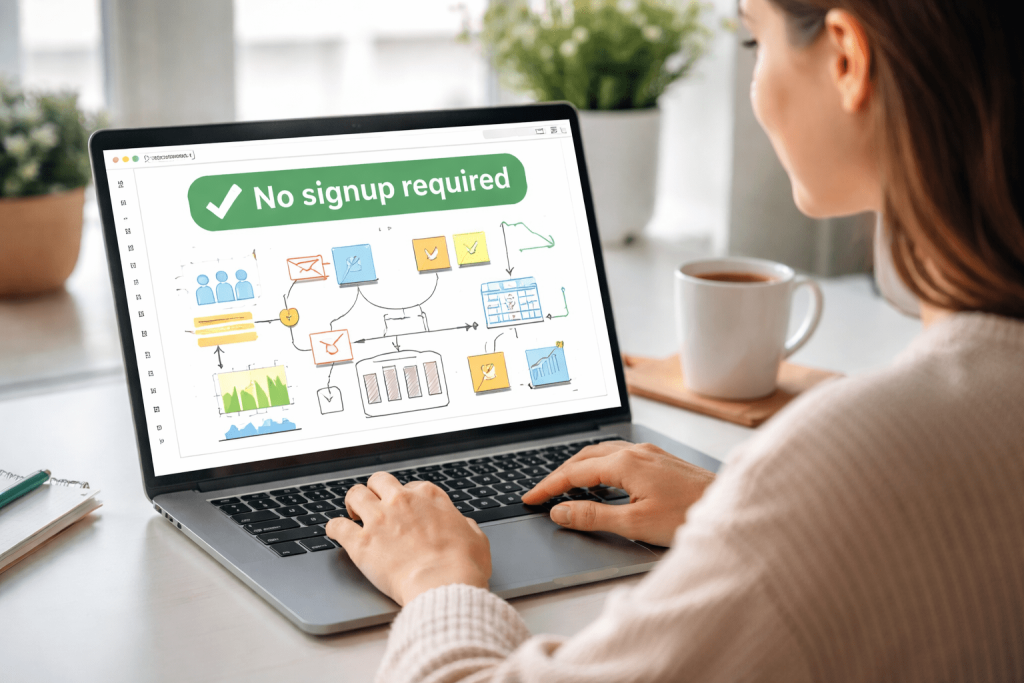
In today’s digital era, online whiteboards for teachers are indispensable in facilitating engaging, collaborative, and highly interactive lessons — especially in remote or hybrid learning models. These tools replicate the physical classroom whiteboard but extend far beyond with real‑time collaboration, multimedia support, lesson recording, and integration with popular educational platforms.
This guide highlights the top online whiteboard tools for teachers, covering key features, pricing, integrations, and ideal use cases to help educators select the most effective solution for their teaching environments.
Why Online Whiteboards Matter in Education
Online whiteboards serve as a digital canvas where teachers and students can interact visually and collaboratively. Their educational value includes:
- Real‑time participation: Students can write, draw, and interact during lessons.
- Supports diverse learning styles: Visual learners benefit from diagrams, charts, and annotations.
- Flexible lesson delivery: Boards can be saved, reused, and integrated with video lessons or LMS platforms.
- Global accessibility: Students can collaborate remotely from any device.
With these advantages, whiteboards have become vital in both synchronous teaching (e.g., live online classes) and asynchronous learning (e.g., recorded lessons or flipped classroom activities).
Evaluation Criteria for Online Whiteboards
When selecting the best online whiteboards for teachers, it is essential to go beyond surface features and consider the practical needs of classroom teaching. Here’s a detailed breakdown of the key criteria we used to evaluate each platform:
1. Ease of Use
Teachers and students should be able to quickly navigate the interface without extensive training. A steep learning curve can reduce engagement and waste class time. This includes intuitive menus, easy access to drawing and annotation tools, and mobile-friendly design for tablets and smartphones.
2. Real-Time Collaboration
Collaboration features are crucial for interactive classrooms. Boards should allow multiple users to write, draw, or comment simultaneously. Live cursors, color-coded contributions, and activity tracking help teachers monitor participation and ensure all students are involved.
3. Multimedia and Content Support
The ability to incorporate images, PDFs, videos, links, and interactive elements enhances learning. Whiteboards that support multimedia allow teachers to create rich lesson content rather than simple text or diagrams, catering to diverse learning styles.
4. Template and Lesson Planning Tools
Educational templates save time and provide structured guidance. Features like mind maps, Venn diagrams, KWL charts, and prebuilt lesson frameworks streamline lesson creation and ensure teachers can focus on content rather than layout.
5. Integration with Educational Tools
Compatibility with learning management systems (LMS) such as Google Classroom, Canvas, or Microsoft Teams is critical for seamless workflow. Integration with video conferencing platforms ensures that whiteboards can be used in live lessons without switching between multiple apps.
6. Student Management Features
Some platforms offer features for classroom monitoring, such as individual student boards, progress tracking, and feedback tools. These are especially valuable for formative assessment, enabling teachers to provide targeted support in real time.
7. Accessibility and Device Compatibility
Whiteboards must function across different devices (desktop, tablet, mobile) and support accessibility standards for students with disabilities. Keyboard navigation, screen reader compatibility, and responsive design are important considerations for inclusive teaching.
8. Security and Privacy
Data protection is vital, especially in educational environments. Platforms should comply with privacy regulations such as FERPA or GDPR, offer secure login mechanisms, and allow teachers to control access and permissions.
9. Pricing and Free Tier Availability
Budget constraints are a reality for many educators. Platforms offering a functional free tier, affordable subscriptions, or educational discounts provide flexibility for schools and teachers to experiment before committing to a paid plan.
10. Scalability
The ability to handle large classes or multiple simultaneous boards is important for institutional adoption. Tools should maintain performance and responsiveness even when many students are collaborating at once.
By evaluating online whiteboards against these criteria, educators can choose platforms that are not only feature-rich but also practical and effective in delivering high-quality learning experiences.
1. Miro — Best for Advanced Collaboration
Website: https://miro.com/
Overview: Miro is a widely‑adopted visual collaboration platform with a powerful infinite canvas and extensive toolkit for brainstorming, diagrams, and real‑time teamwork.
Key Features
- Infinite canvas workspace
- Sticky notes, flowcharts, mind maps
- Real‑time editing with unlimited collaborators
- Integration with Zoom, Teams, and LMS platforms
- Templates for lesson planning and student activities
Ideal For: Remote classrooms, group projects, student brainstorming sessions, workshop‑style lessons.
Pros: Highly customizable and versatile.
Cons: Slight learning curve for beginners.
2. Microsoft Whiteboard — Best for Microsoft Ecosystem
Website: https://app.whiteboard.microsoft.com/
Overview: Microsoft Whiteboard is a free collaborative canvas integrated with Microsoft 365 and Teams.
Key Features
- Infinite digital canvas
- Integrated with Teams and OneNote
- Sticky notes, shapes, and templates
- Auto‑save and cloud access
Ideal For: Schools using Microsoft 365 or Teams for remote classes.
Pros: Seamless integration with Office tools.
Cons: Requires Microsoft accounts for full collaboration.
3. Whiteboard.fi — Best for Individual Student Interaction
Website: https://whiteboard.fi/
Overview: Whiteboard.fi is designed specifically for classroom use where each student gets their own board.
Key Features
- Automatic individual boards per student
- Teacher view to monitor student work live
- No login required for students (share a code/link)
- Text, shapes, images, and math tools
Ideal For: Formative assessment, live classroom engagement, student check‑ins.
Pros: Very teacher‑friendly and easy to start.
Cons: Fewer advanced tools compared to broader platforms.
4. Explain Everything — Best for Interactive, Multimedia Lessons
Website: https://explaineverything.com/
Overview: Explain Everything combines a whiteboard with multimedia and recording capabilities — allowing teachers to create rich interactive lessons.
Key Features
- Real‑time collaboration with audio/video
- Record lessons and tutorials
- Import images, PDFs, and other media
- Templates for structured lessons
Ideal For: Blended and flipped classrooms, video‑based instruction.
Pros: Excellent for recorded lesson creation.
Cons: More features may require a subscription.
5. Ziteboard — Best Lightweight Whiteboard
Website: https://ziteboard.com/
Overview: Ziteboard is a minimalist but capable whiteboard tool that works entirely in the browser with real‑time collaboration.
Key Features
- Infinite zoomable canvas
- Realtime collaboration
- Shape recognition and smooth drawing
- PDF/image upload and export
Ideal For: Quick lessons, tutoring, sketch‑based explanations.
Pros: Easy to use with a clean interface.
Cons: Lacks advanced instructional templates.
6. Zoom Whiteboard — Best Integrated with Zoom Meetings
Website: https://www.zoom.com/en/products/online-whiteboard/
Overview: Zoom Whiteboard is part of the Zoom ecosystem, allowing teachers to launch a whiteboard during meetings or in Zoom Chat.
Key Features
- Launch instantly within Zoom
- Infinite canvas with pen, text, and shapes
- Templates and AI prompts
- Share and export boards
Ideal For: Live online classes hosted on Zoom.
Pros: Built‑in and convenient for Zoom users.
Cons: Limited when used outside of Zoom ecosystem.
7. Canva Whiteboards — Best for Visual Organizers
Website: https://www.canva.com/whiteboards/
Overview: Canva’s Whiteboards bring the creative power of Canva’s design tools into a collaborative board environment.
Key Features
- Drag‑and‑drop visuals
- Templates for diagrams, mind maps, and storyboards
- Collaboration tools and linking
- Export to image or PDF
Ideal For: Visual storytelling, graphic organizers, project presentations.
Pros: Visually rich and intuitive.
Cons: Less focus on live teaching tools.
8. Limnu — Best for Natural Pen‑Like Drawing
Website: https://limnu.com/
Overview: Limnu provides a natural writing experience and is favored when freehand drawing fidelity matters.
Key Features
- Realistic drawing and marker feel
- Live collaboration via link sharing
- Layered board support
- Simple and accessible interface
Ideal For: Geometry, diagram lessons, art and design teaching.
Pros: Very natural drawing feel.
Cons: Fewer built‑in educational templates.
9. Conceptboard — Best for Organized Visual Projects
Website: https://conceptboard.com/
Overview: Conceptboard blends visual collaboration with project organization — including commenting, tagging, and task tracking.
Key Features
- Infinite canvas with drag‑and‑drop
- Commenting and annotations
- Roles and permission controls
- Presentation and task features
Ideal For: Group projects and structured activities.
Pros: Great for project‑based learning.
Cons: Editing features may require paid plans.
Feature Comparison Table
| Tool | Real‑Time Collaboration | Multimedia | LMS/Meeting Integration | Best Use | Free Tier |
|---|---|---|---|---|---|
| Miro | ✓ | ✓ | Yes | Group Projects | Yes |
| Microsoft Whiteboard | ✓ | Medium | Teams | MS Ecosystem | Yes |
| Whiteboard.fi | ✓ | Low | Classroom Focus | Student Monitoring | Yes |
| Explain Everything | ✓ | ✓ | Yes | Recorded Lessons | Freemium |
| Ziteboard | ✓ | Medium | Yes | Tutor/Sketch | Yes |
| Zoom Whiteboard | ✓ | Low | Zoom | Live Classes | Yes |
| Canva Whiteboards | ✓ | High | No | Visual Projects | Yes |
| Limnu | ✓ | Medium | Limited | Sketchy/Math | Paid |
| Conceptboard | ✓ | High | Integrations | Structured Projects | Freemium |
Choosing the Right Whiteboard
For Live Remote Classes
Use Zoom Whiteboard or Microsoft Whiteboard for seamless integration with common conferencing tools.
For Student Formative Assessment
Whiteboard.fi allows teachers to see each student’s board live, making it ideal for classroom engagement.
For Interactive Video Lessons
Explain Everything is best when you want to record and share lesson content with rich visuals.
For Collaborative Group Work
Miro and Conceptboard provide robust tools for team collaboration.
Best Practices for Teachers
- Use Templates: Most platforms include lesson templates (mind maps, Venn diagrams, exit tickets).
- Train Students: A quick orientation helps maximize participation.
- Integrate with LMS: Embed whiteboards or link boards into your LMS modules.
- Record Lessons: Combine recorded whiteboard sessions with traditional resources.
- Save and Share: Export boards as PDFs or images for revision.
Accessibility & Compatibility
The best online whiteboards are:
- Cross‑platform: Compatible with desktops, tablets, and phones.
- Cloud‑synced: Real‑time saving and versioning.
- Accessible: Support keyboard navigation and screen readers.
Always verify device compatibility before rolling out tools to students.
Conclusion
Online whiteboards have emerged as essential tools for teachers and online classes. From collaborative boards like Miro and Conceptboard to teacher‑centric tools like Whiteboard.fi and Explain Everything, these platforms cater to diverse educational needs.
Recommended tools based on use case:
- Best overall collaboration: Miro
- Best integrated with video conferencing: Zoom Whiteboard
- Best for quick classroom deployment: Whiteboard.fi
- Best multimedia lesson creation: Explain Everything
- Best natural drawing experience: Limnu
Selecting the right online whiteboard empowers teachers to deliver engaging, intuitive, and effective lessons in any learning environment.
FAQs
1. What is an online whiteboard?
A virtual canvas where teachers and students collaborate in real time, using drawing tools, text, shapes, and multimedia.
2. Are online whiteboards free?
Many offer free tiers, but advanced features generally require paid plans.
3. Which whiteboard integrates with Zoom?
Zoom Whiteboard is built into the Zoom platform and works with meetings.
4. Can students use boards without accounts?
Some tools like Whiteboard.fi allow access via codes without individual logins.
5. Are whiteboards accessible on mobile?
Most support mobile browsers or apps, though desktop provides the richest experience.